Hide and Protect
See which traffic passes through the Locks
Traffic Discovery shows who talks to whom on the network. You see the traffic in the XMS and can export it to your own analysis tool. That makes it much easier to divide the network into zones.
In the XMS
All traffic through the Locks in one place
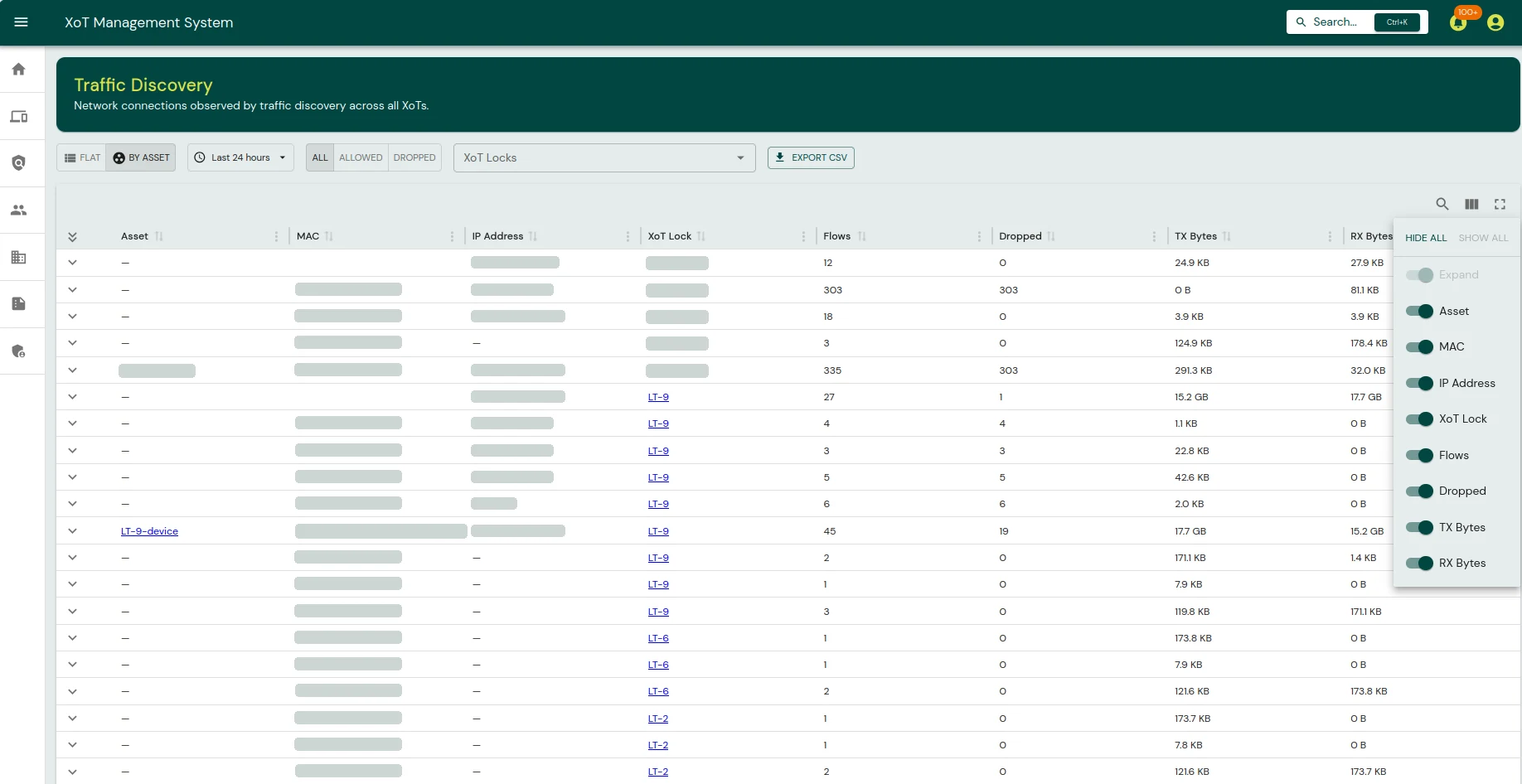
Traffic Discovery gathers the connections the Locks see, from all Locks. You can view the traffic in two ways.
By asset
One row per device. The row shows the number of flows, how much was dropped, and how much data was sent and received.
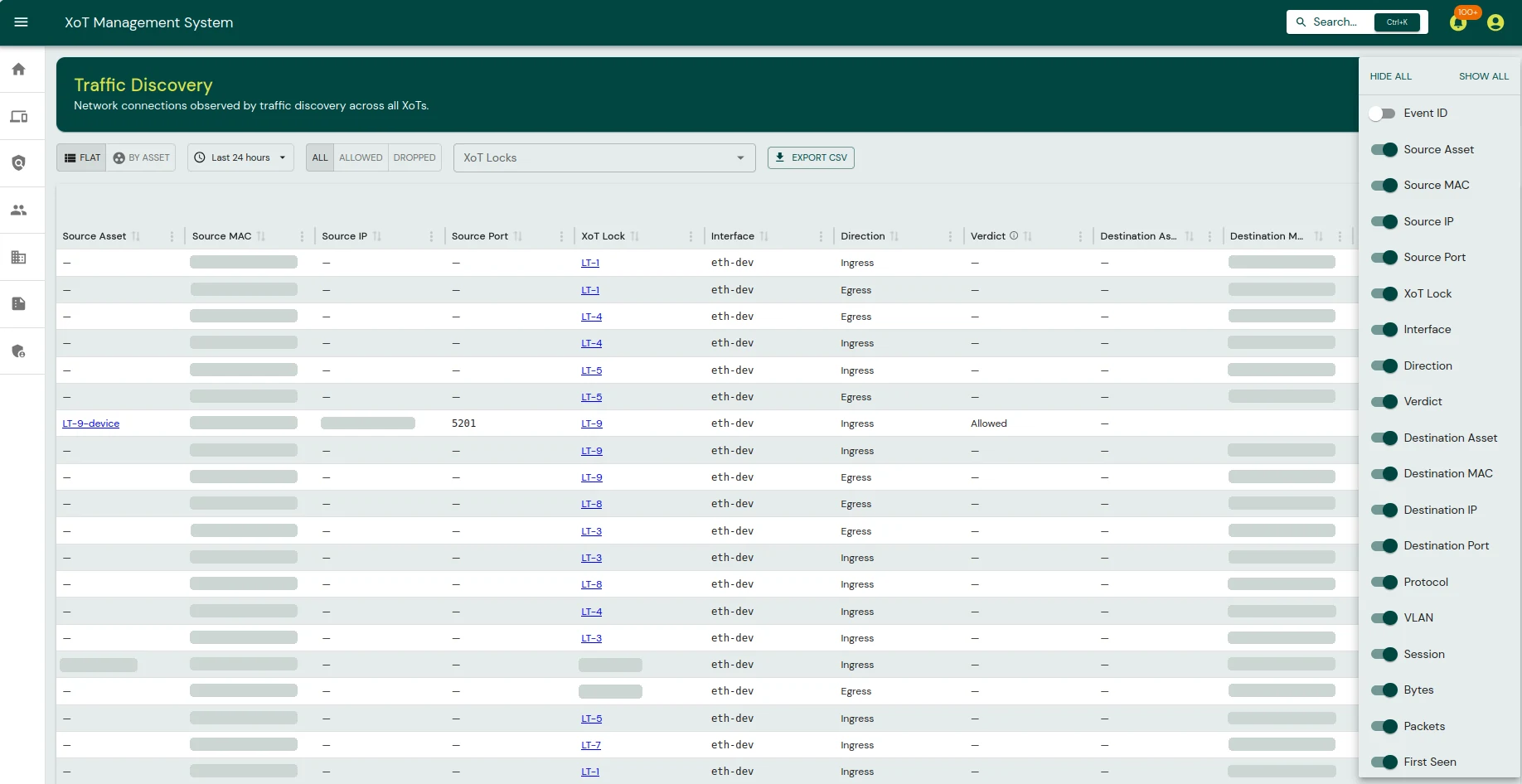
As a list
One row per connection. The row shows source, destination, port, protocol, VLAN and direction. It also shows whether the traffic was allowed or dropped.
Filter and export
Find the right traffic and take it further
Time and Locks
Choose a time period, for example the last 24 hours. Choose which Locks to show as well.
Allowed or dropped
Show all traffic, only allowed traffic or only dropped traffic.
Columns and search
Choose which details to show, such as MAC address, IP address, port, protocol and VLAN. Search the list to find a device.
Export to CSV
Export the traffic and analyse the data flows in your own tool. That can be a spreadsheet or a data flow analysis tool.
Micro-segmentation
The basis for micro-segmentation
Before you divide the network, you need to know which traffic is needed. That is often the hardest step. Traffic Discovery shows it, based on what actually happens on the network.
- Install the Locks with a temporary policy that lets everything through.
- Let Traffic Discovery record the traffic over a full operating cycle, with every shift and weekly job.
- Analyse the data flows in the XMS, or export them to your own tool.
- Create policies for the traffic that is needed. Activate them one zone at a time.
Once the policies are active, Traffic Discovery shows which traffic is dropped. Then you see straight away if a policy is missing.
Common questions
How long should traffic be recorded?
Over a full operating cycle. That means every shift, every batch and the jobs that run each week, such as backups. Otherwise a flow that only happens once a month gets dropped later.
Does Traffic Discovery see all traffic on the network?
No. It sees the traffic that passes through the Locks. Traffic between equipment behind the same Lock does not pass through the Lock.
What can we do with the export?
The export is a CSV file. You can open it in a spreadsheet or a data flow analysis tool. There you can group the traffic and see which zones you need.
Who can use Traffic Discovery?
Traffic Discovery is available in the XMS for all customers.
Would you like to see the traffic on your network?
Start with one Lock and let Traffic Discovery record the traffic.